
Shizuku Authorization
What is Shizuku?
Shizuku is an open-source Android tool that allows apps to call system APIs without requiring Root permission.
With Shizuku, users can grant certain apps elevated system privileges while balancing security and convenience. Its core functionality is based on ADB and runtime permissions, allowing developers to use some advanced APIs under normal user privileges.
Installation
We recommend using the thedjchi/Shizuku branch first. This branch includes fixes for several known issues.
If you still run into background keepalive issues, please refer to the keepalive guidance.
Start
Tip
Before continuing, make sure Developer options is already enabled on your phone. If not, please search for a tutorial for your phone brand first.
Shizuku can be started in two ways: Wireless debugging and ADB. Choose the method that best fits your situation.
Tip
No matter which method you use, Shizuku must be started again after the phone restarts.
Start with Wireless Debugging
Tip
If your device is running Android 11 or later, you can directly use Wireless debugging. Otherwise, using ADB is recommended.
Make sure you are connected to Wi-Fi, then launch Shizuku.
- Open
Shizukuand tap thePairingbutton.
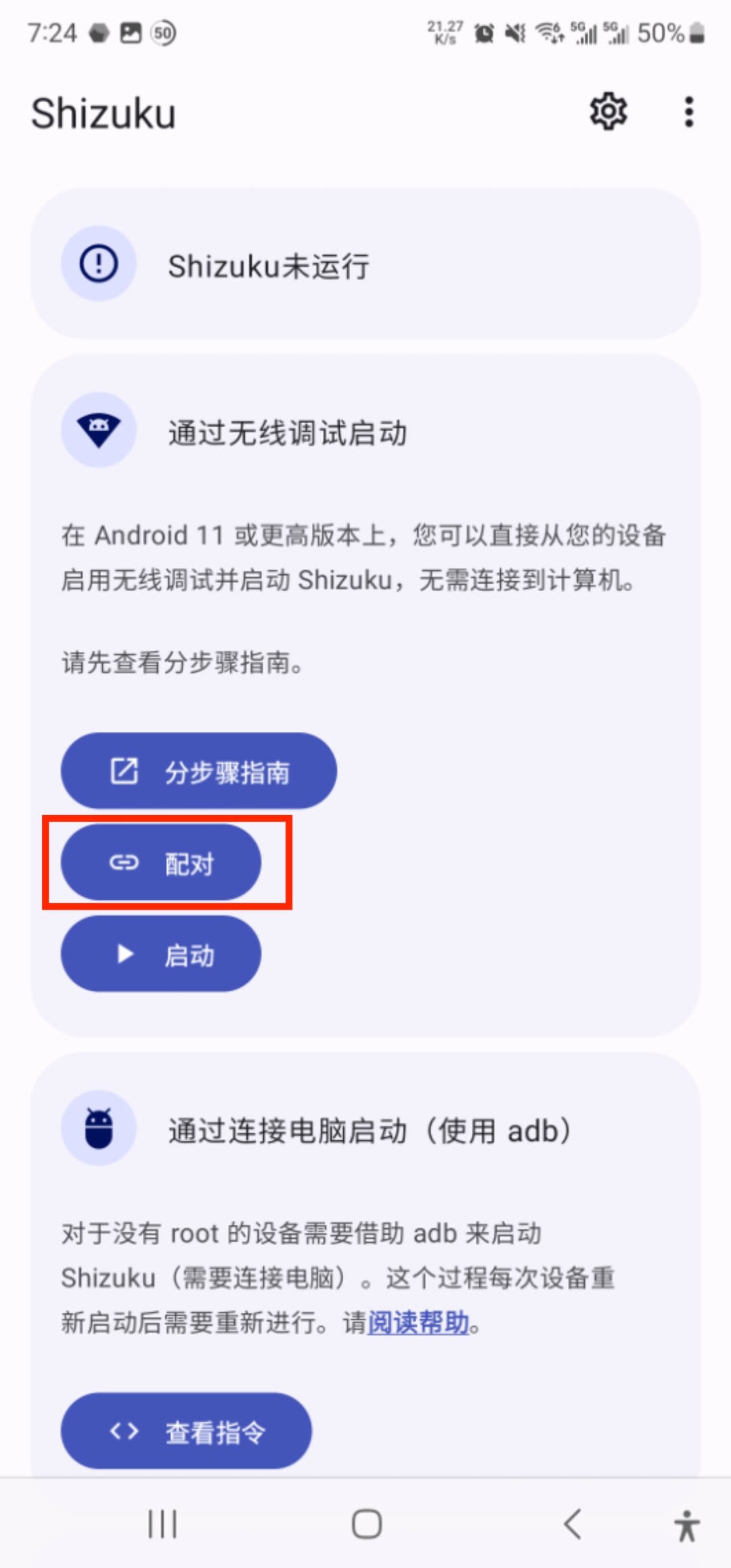
- Tap
Developer options, and you will be taken to theDeveloper optionspage.
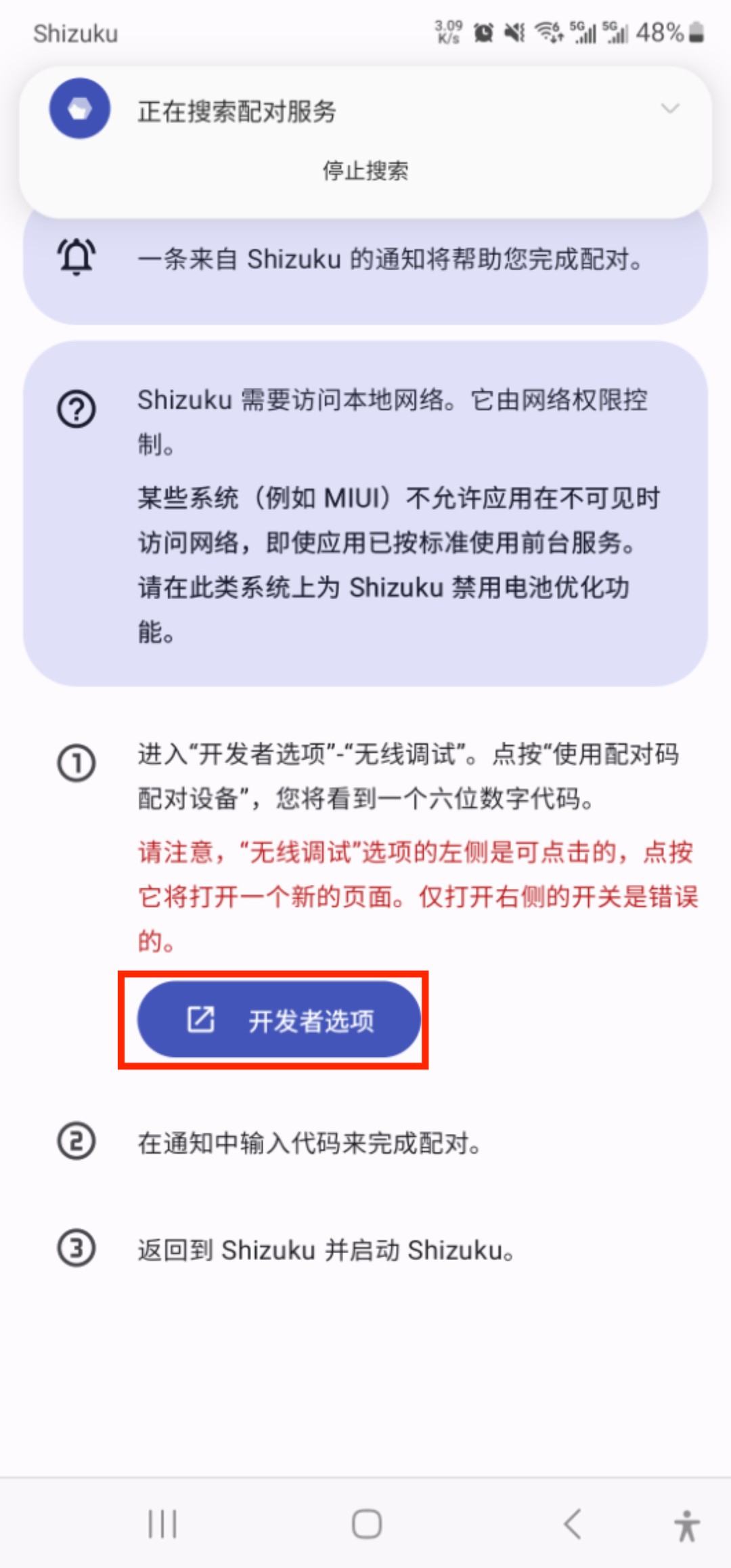
- Find
Wireless debugging, turn on the switch on the right, then tap the area on the left side of the switch to enter the wireless debugging page.
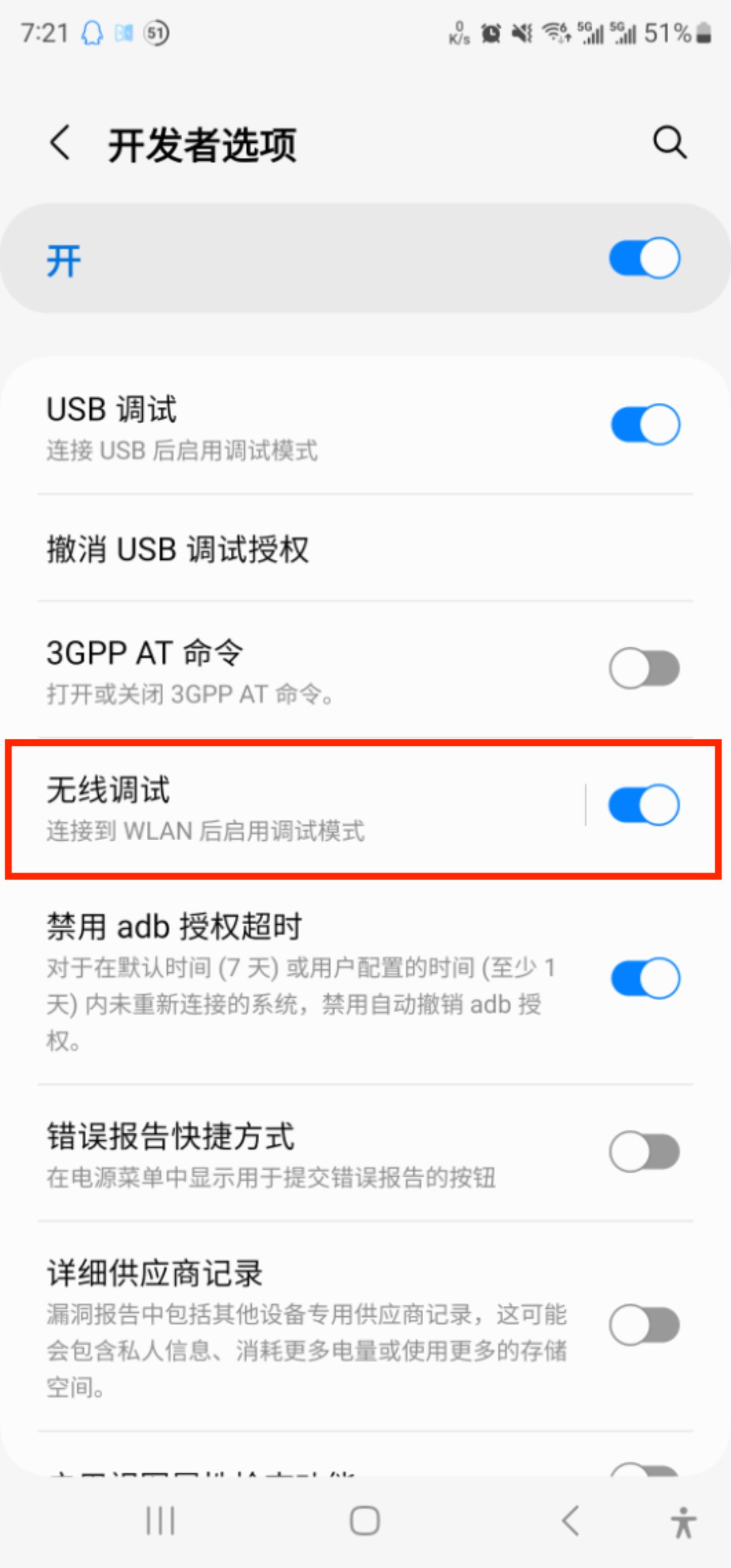
- Tap
Pair device with pairing code.
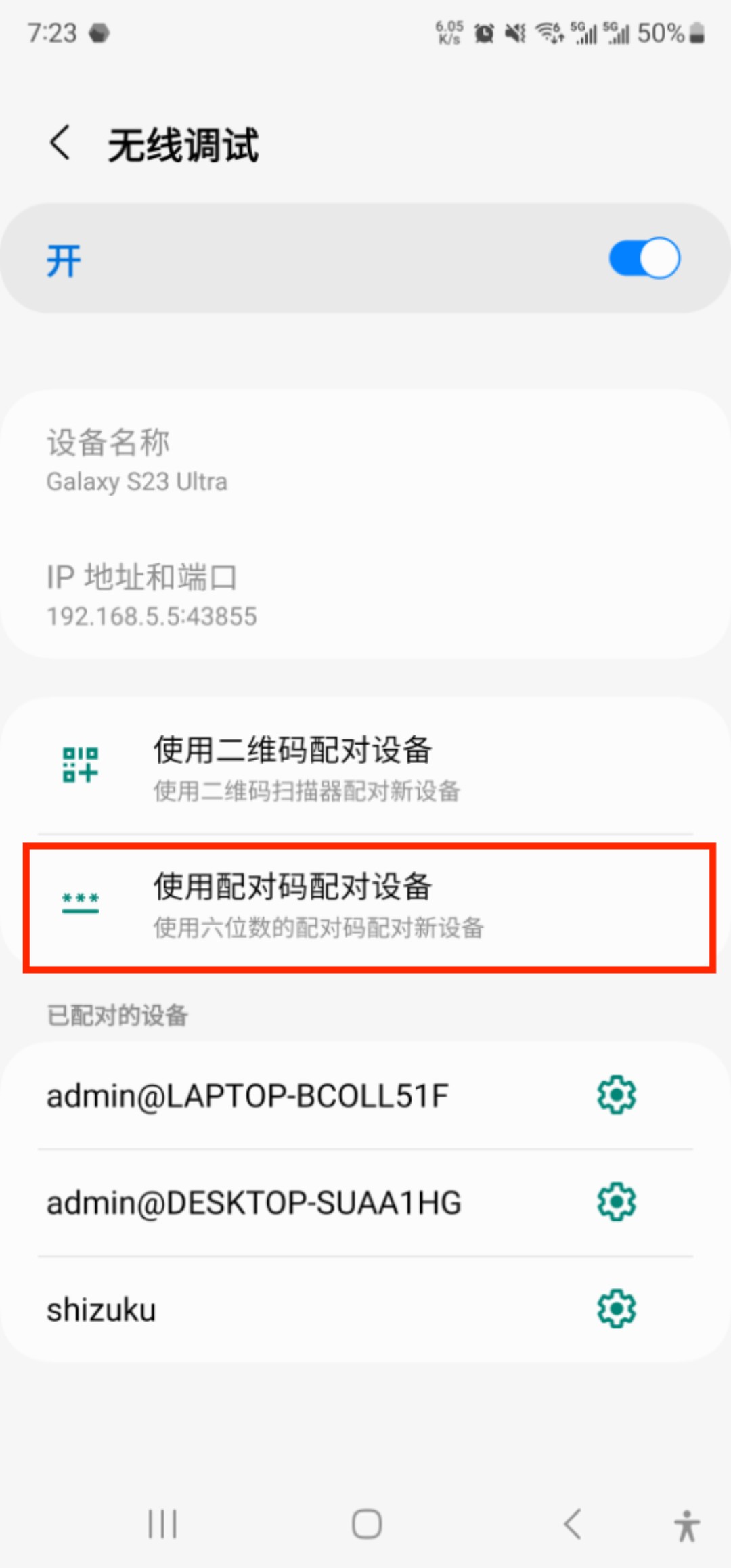
- A
pairing codewill appear at the bottom of the screen, and a notification will appear in the notification bar. TapEnter pairing code.
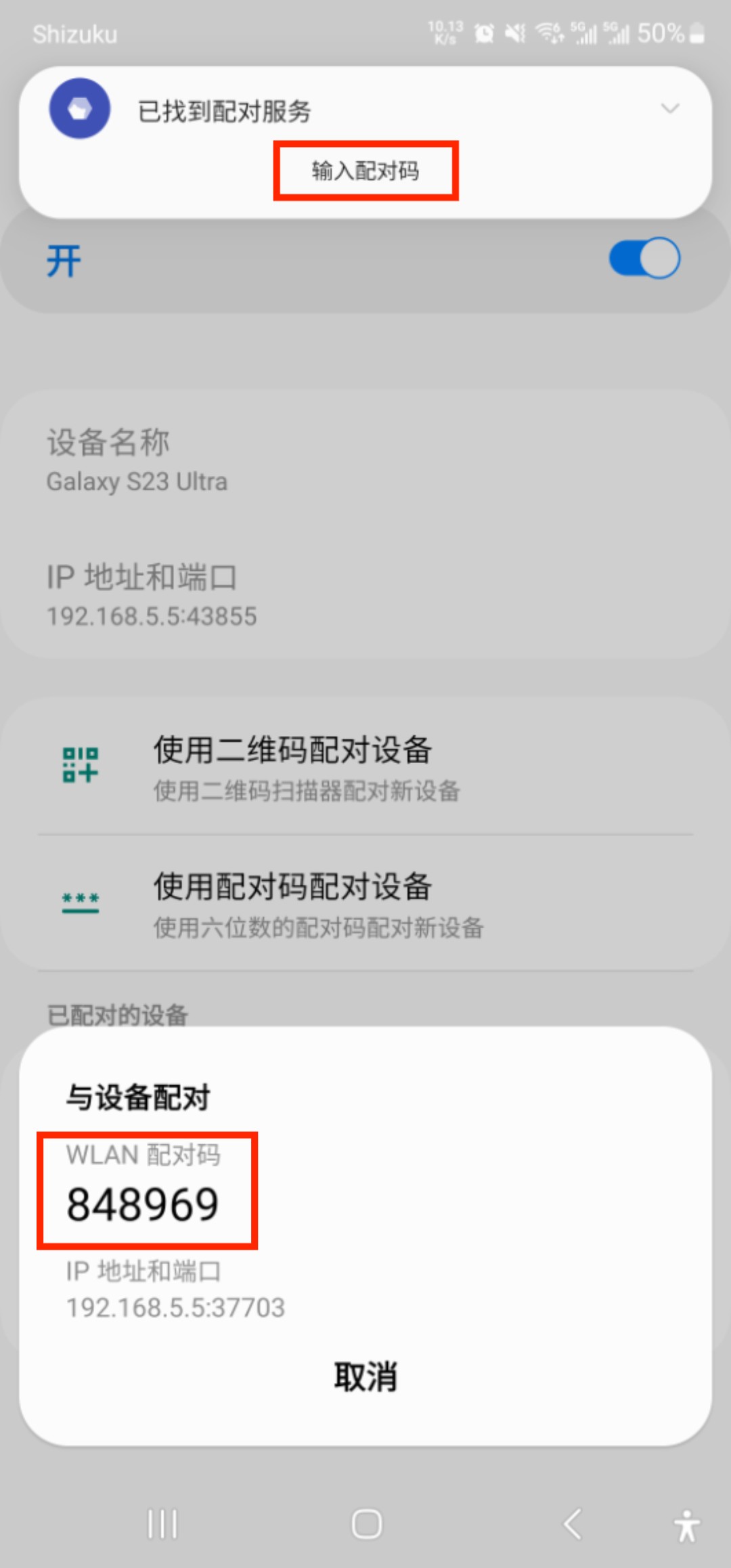
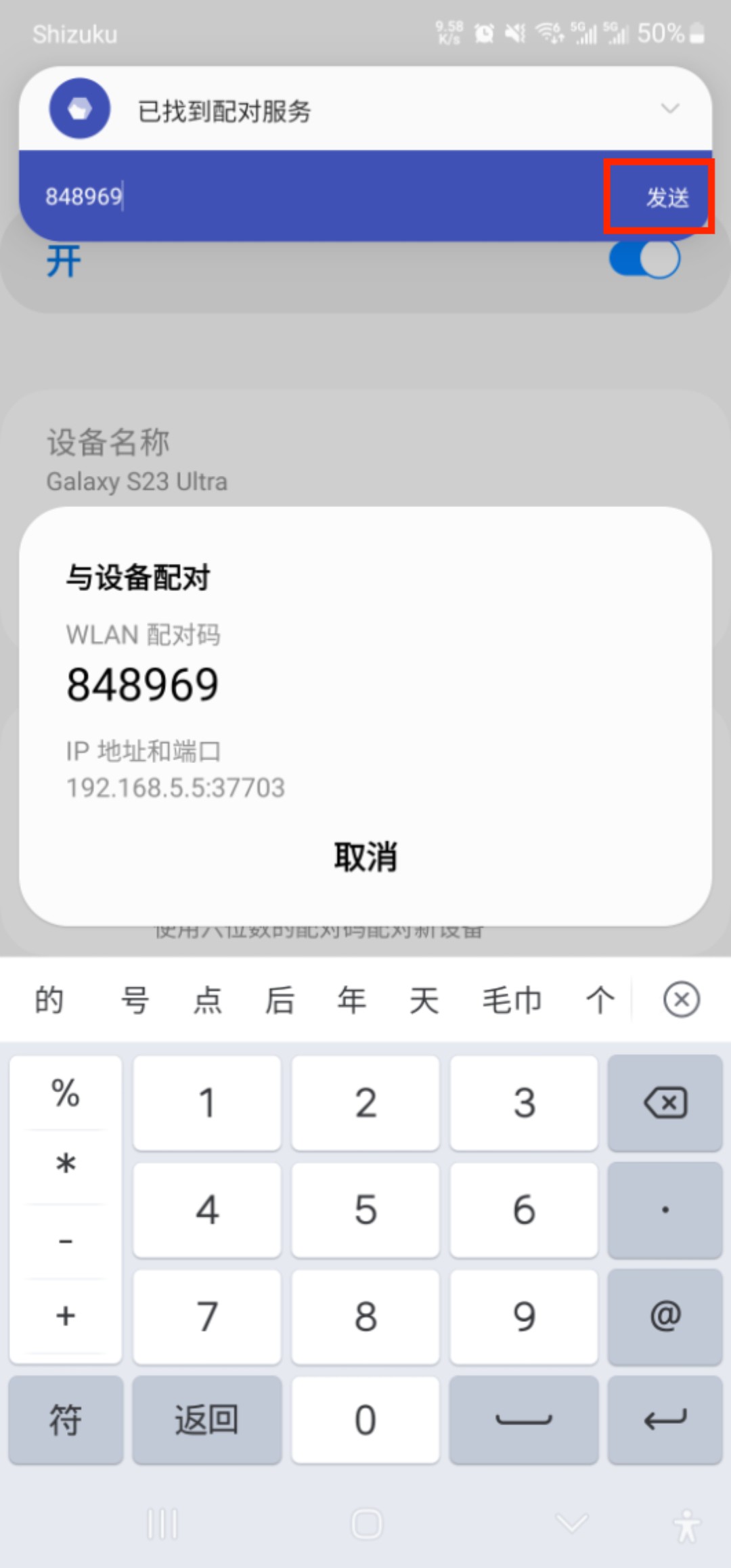
- After entering the pairing code, tap
Send, then return toShizuku.
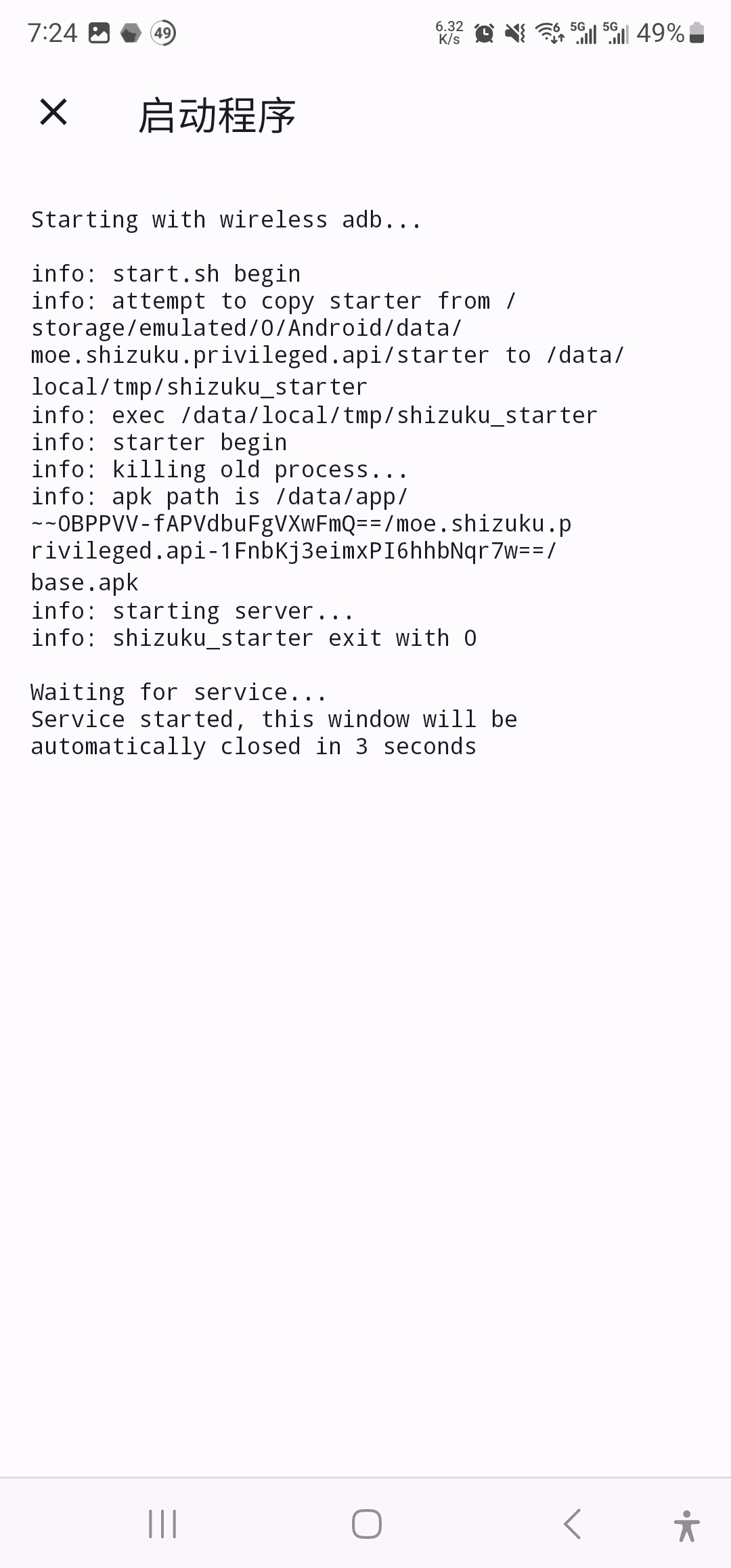
- After returning to
Shizuku, it should automatically enter the following screen and exit after about 3 seconds. If the Shizuku main page showsRunning, startup is complete.
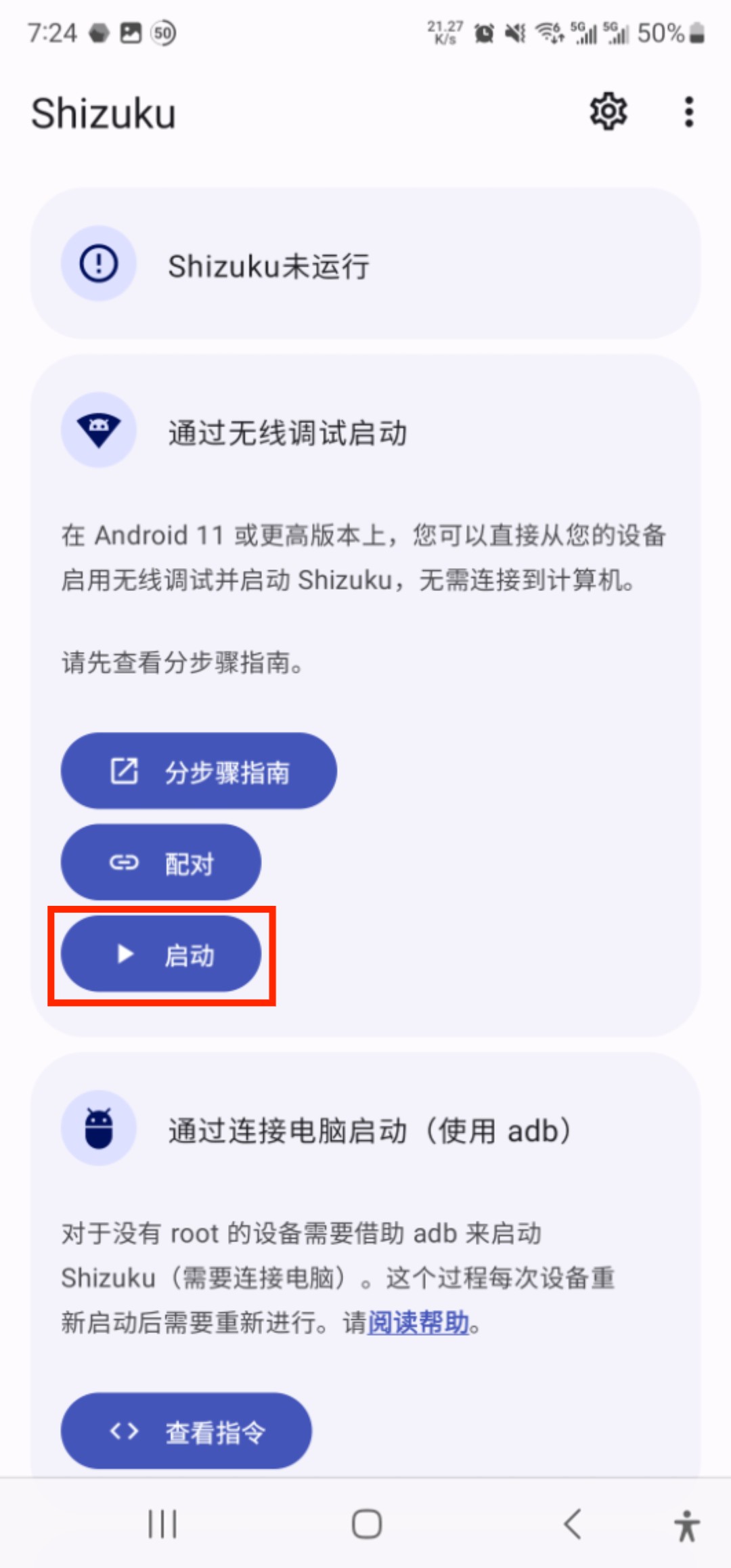
- If this screen does not appear, tap the
Startbutton on the Shizuku main page.
- If there is still no response, repeat the process from step 1. Sometimes it takes two or three tries to start successfully.
Tip
To ensure proper authorization and use later, set Shizuku's Battery optimization to Unrestricted and allow it to Run in background.
Start with ADB
ADB, short for Android Debug Bridge, is a command-line tool used to interact with Android devices. It allows developers to connect devices over USB or Wi-Fi for debugging, app installation, file transfer, log viewing, running tests, and more. It is an essential tool for Android development and device management.
Tip
Using ADB to start Shizuku requires a computer.
If you have not downloaded ADB yet, click here to download.
On your phone, enter
Developer options, findUSB debugging, and turn it on.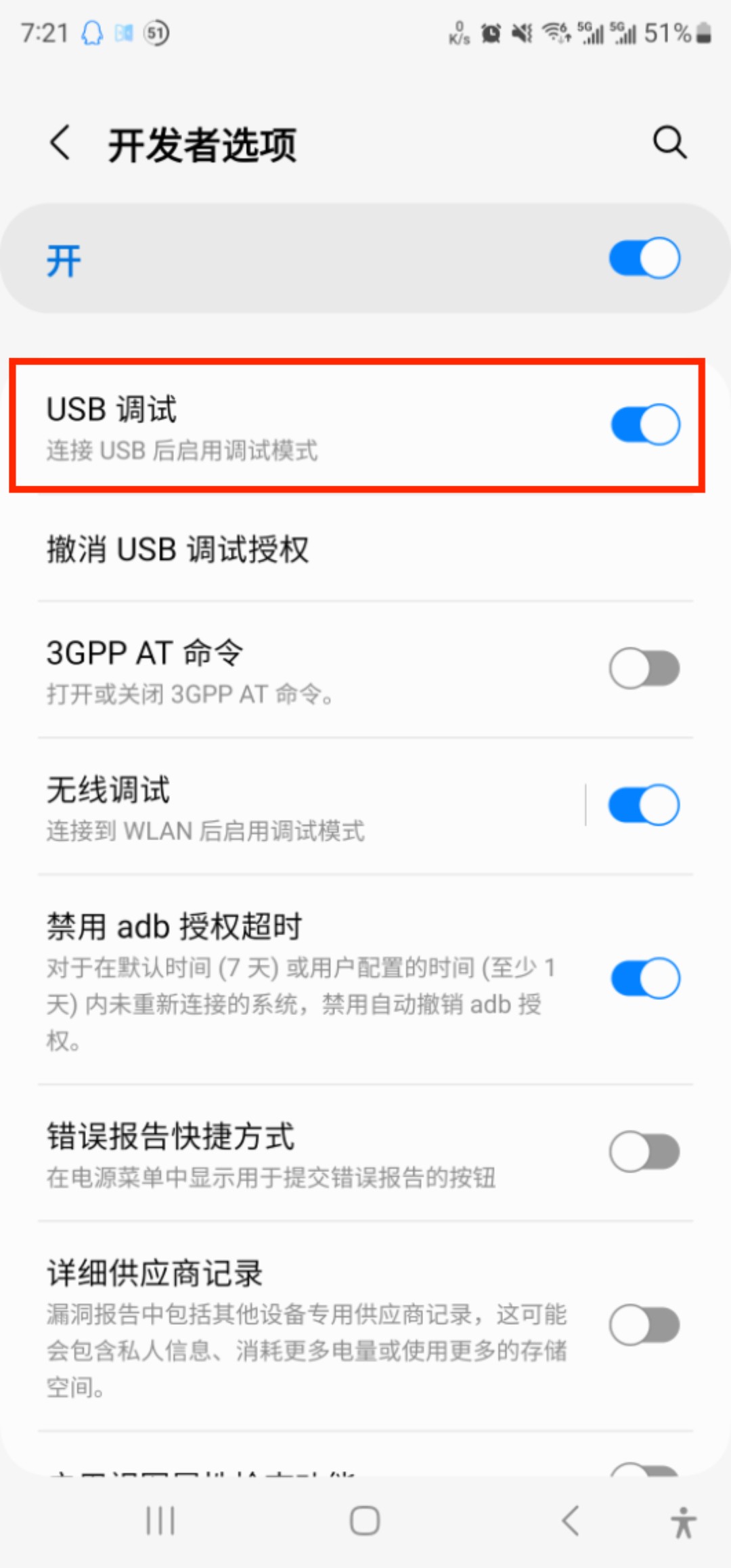
Set
Default USB configurationtoFile transfer.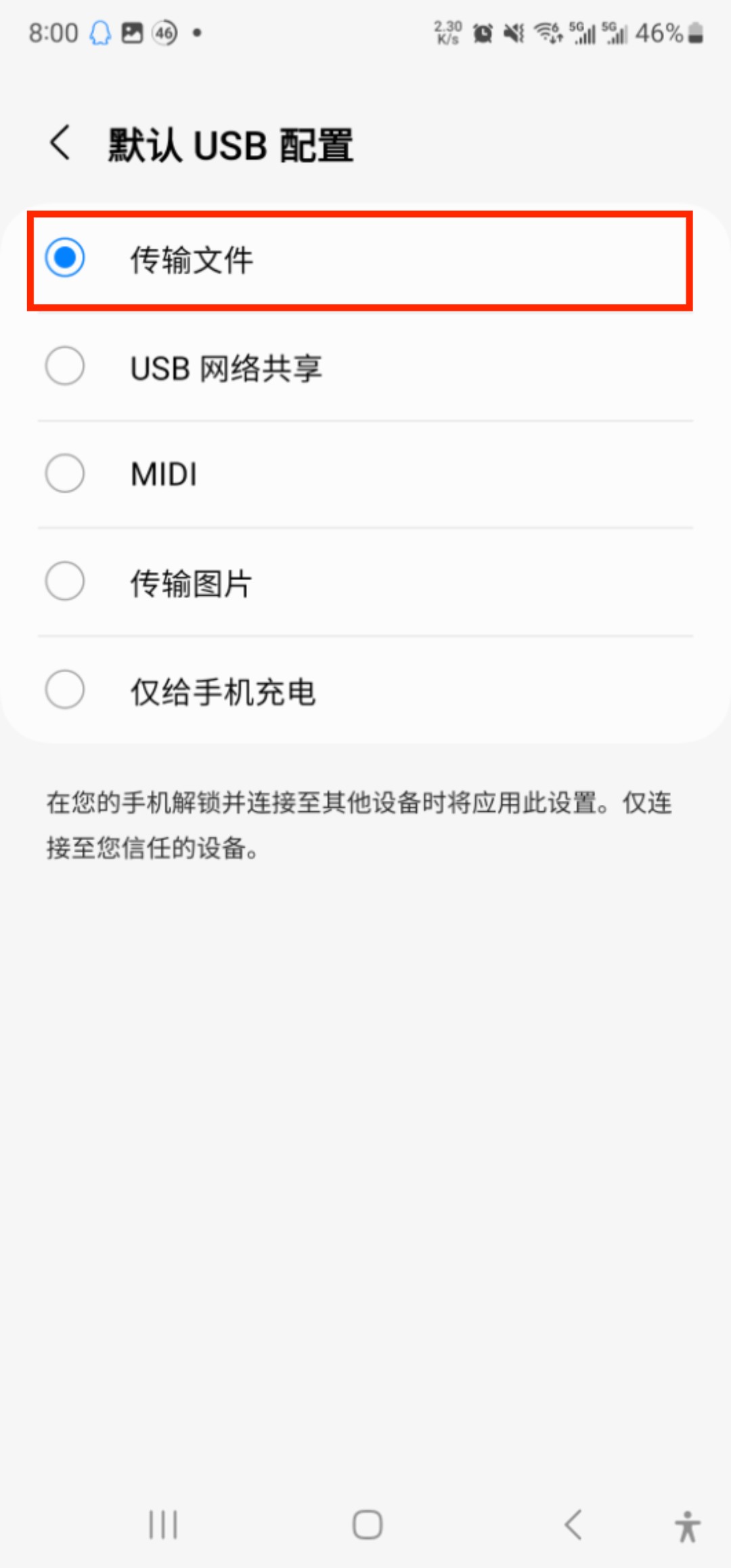
On your computer, extract the downloaded
ADBtools. Using Windows as an example, enter the extracted directory, typecmdin the address bar, and press Enter to open the command line window.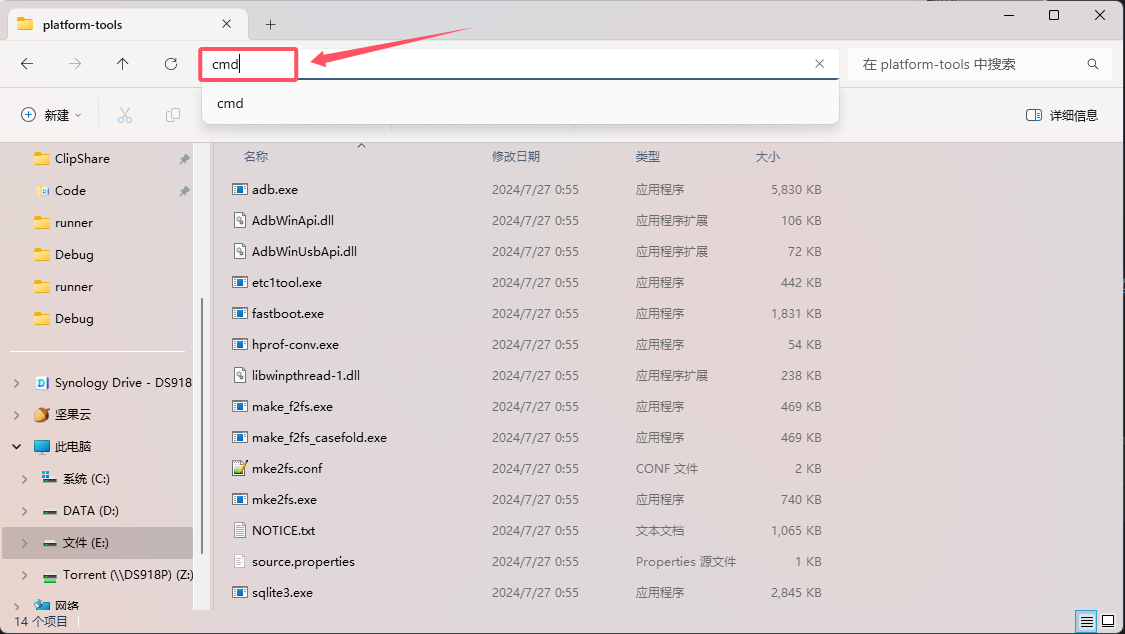
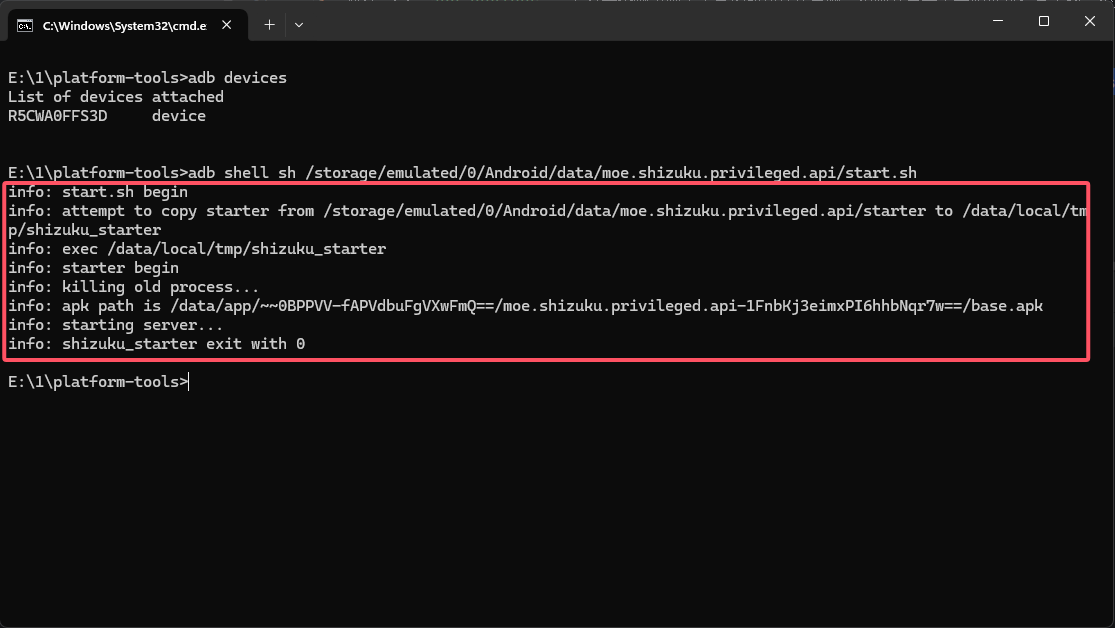
Run the command
adb devices. If one device appears in the output, the computer connection is successful. Otherwise, go back to step 1 and re-check the setup.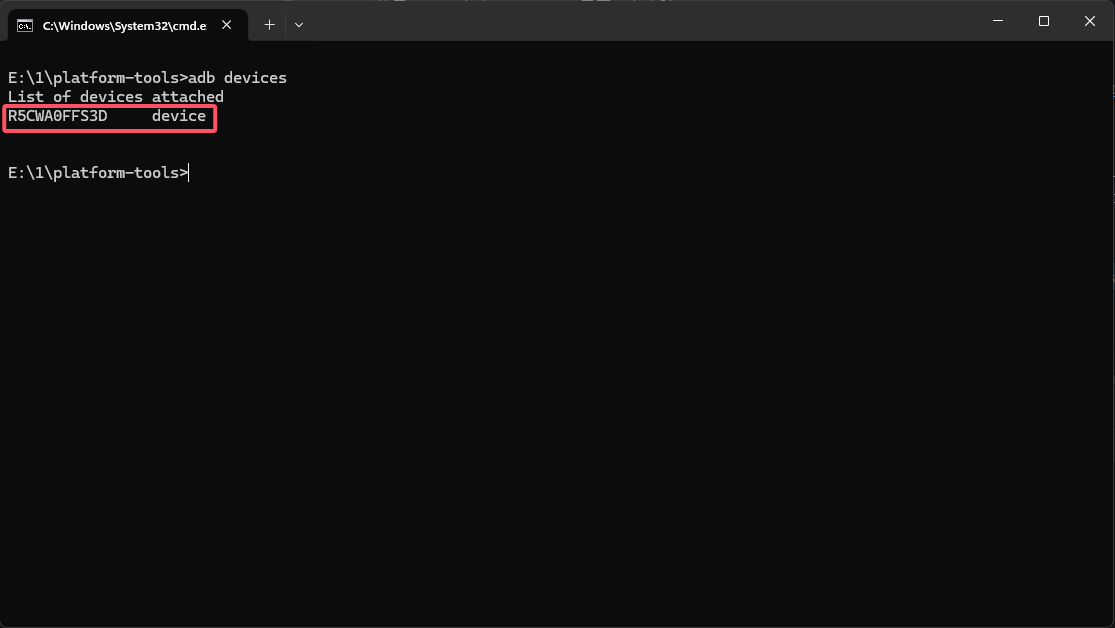
Run the following command to start Shizuku:
adb shell sh /storage/emulated/0/Android/data/moe.shizuku.privileged.api/start.sh- If you see the following output, startup succeeded:
Tip
To ensure proper authorization and use later, set Shizuku's Battery optimization to Unrestricted and allow it to Run in background.